Inviting collaborators to scan tickets is easy! Currently, we have a web app (website) that uses the camera access on your phone or iPad to scan QR codes. In the future, we’ll have an app to further improve the experience. 🪄
Invite scanners
From your Event page, tap the Settings gear emoji on the right. At the very bottom of the pop-out you’ll see Permissions. Enter the collaborators email address, choose the permission level, and tap Invite. Permissions are as follows:
Edit event: editors can edit, scan tickets and view the event
View event: viewers can view and scan tickets
Scan tickets: scanners can only scan tickets
Instructions for Scanners
Inviting a collaborator immediately sends them an email with a link to their invite.
Note: it’s best if they accept this invite from the device they’ll be using at the box office / door.
They’ll be asked to login with Ambrosia - please choose “Login with Google” or “Login with Apple”’
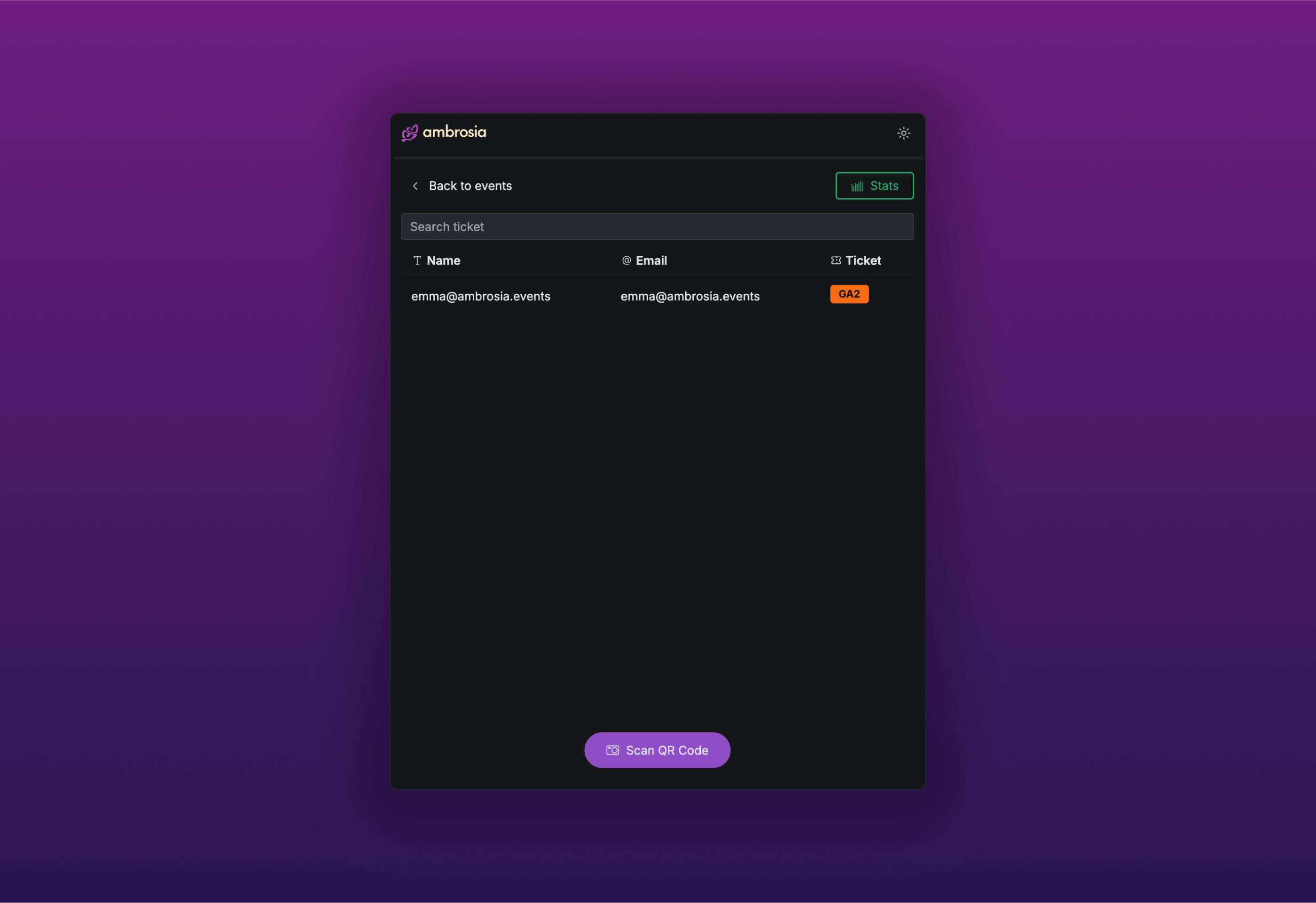
Once the invite is accepted, they’ll be redirected to the web scanning app (https://studio.ambrosia.events/scan), which looks like this in their browser:
Scanners can check attendees in by using the purple button to scan the QR code ticket or searching by name or email use to purchase the ticket
To un-check an attendee in, simply tap the name.
Tap the Stats button and you’ll see a live tally of how many attendees have been checked in!
Tips for Scanners
Ambrosia works best on Chrome or Safari - we recommend using one of those browsers.
Have scanners bookmark the scanning link now so they can quickly access it on the day of the event.